



Alrighty, so you started your blog. You choose a theme and thought, well, that looks good. But then, something new was introduced. Something called a page builder. Wait, what? I thought my theme was a page builder? What’s the difference and do I even need one?
This post will aim to clear up any confusion and introduce you to two powerful page builders, Divi vs Elementor. Ready to clear up the confusion and feel confident going forward building a beautiful blog? Let’s do it!
Please note this post contains affiliate links, which means I receive a commission if you make a purchase through my link, at no extra cost to you. Thank you for your support!
Theme vs Page Builder
First of all, what’s the difference between a theme and a
page builder?
It’s very easy to get a theme and a page builder confused. A few years ago the difference was very clear, but as technology has improved, some page buiders have become themes themselves! So let’s get into the basics first.

What is a WordPress theme?
A theme is the backbone of your website. It controls the look of the header, footer and sidebar. It helps you customize your overall website – like your text sizes, fonts, colors, widget locations and layout. It is also where you upload your site logo and favicon to brand your blog. Your blog theme controls the style of your blog posts and blog archives.
There are both free and paid WordPress themes. Some themes have a freemium model where they offer a free version which can be upgraded to a pro version.
Astra, a lightweight and powerful theme follows this model. It’s also the theme I recommend to new bloggers, as it comes with a huge library of pre-built websites.
Free WordPress themes can be found under your WordPress dashboard by navigating to Appearance > Themes. Each theme has a different style and number of customizations, but there is only so much you can do within your theme, that is why you need a page builder – but more on that in just a second.

Once you decide to use a paid WordPress theme, you’ll have more options, more features and more support.
But things can get a little hairy when you look at paid themes vs page builders. As the two most common page builders now are also theme builders.
So personally, I wouldn’t recommend upgrading your theme to a paid theme. I’d rather encourage you to purchase a premium page builder – which can do all a premium theme can do and more! Especially if you’re just starting out.
If you want to add more functionality to your website such as ecommerce or an online learning management system – then the features of a paid theme may come in useful.
In an attempt to clear things up and keep it simple, the highlighted parts in the image below shows the elements of your website that your theme customizes. The header, sidebar, widgets and footers.

Everything inside the white part is determined by your page builder. Alrighty, so the next question is…
The name pretty much sums it up, a page builder builds your pages. It’s what makes your website go from “meh” to “wooooooooooaah”.
Instead of white pages with black text, you can add colors, animations, overlay images, parallax sections, contact forms, sliders, maps, icons, buttons, videos and more.
Page builders are used for your main website pages; such as your About me page, Home page, Contact me page, any sales pages or landing pages for email signups.
Page builders are not used to write blog posts, that’s another topic we’ll discuss a bit later.
Again, maybe using an image would be an easier way to answer this question.
A page builder is a plugin that allows you to customize the areas between the header, sidebar and footer of your website. Most page builders have drag and drop capabilities making it easy to create a professional site.
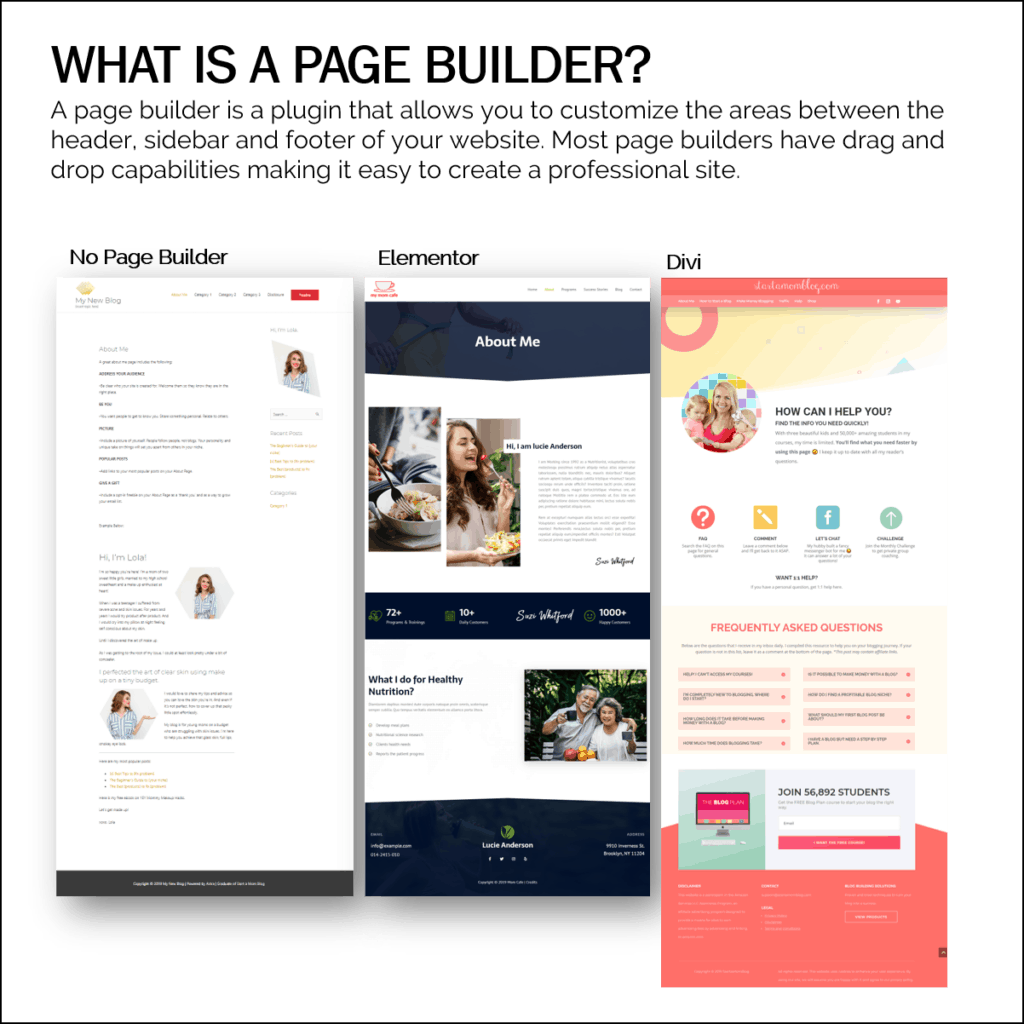
The image above shows three different websites. The first one does not use a page builder, the middle website uses the Elementor page builder and the last website is an example of the Divi page builder.
The page builders allow you to add more customization to your website. By using a page builder you can dramatically increase your conversions and sales from you blog.
Now once you’re ready to start using a page builder, which one should you use?
There are many page builders to choose from, but I’ll share with you the ones I’ve used personally and like the most.

Divi Theme and Page Builder
I personally use the Divi theme and page builder on this website. It’s easy to use and learn, creates gorgeous pages and has a library of premade templates.
Divi is not just a page builder, it’s a theme as well. That means I can edit my header, footer and sidebar with my page builder.
In other words, I can customize every single pixel of my website to match my brand.
That’s the power behind a page builder that is also a theme.
More reading about Divi:

Elementor Page and Theme Builder
Elementor is also a page builder and a theme builder as well. Instead of just customizing the white space between your header and footer, you can now edit every element of your website.
The benefit of Elementor is that it has a freemium model. Meaning you can use Elementor for free in a limited capacity. When you’re ready, you can upgrade to the pro version of Elementor for more features.
More reading about Elementor:
Many of my readers know I use and love the Divi theme and page builder. And I’ve recommended Divi to my more advanced students when they are ready to upgrade their blog and start creating landing pages and sales pages.
But to increase my own knowledge of what works and what doesn’t, I’ve been using Elementor for the past year on different websites.
And I’ve come to the conclusion that I really like both page builders.
- Divi is super easy to use and navigate.
- Elementor is zippy and has many unique features.
Both page builders are also theme builders, meaning they can edit every pixel of your website.
And both have very strong camps of supporters. So don’t be alarmed when you find people loving Divi and slamming Elementor, or the other way around.
I know what works for me and what I love. But that may not always be the exact solution for my new blogging students, keep reading to understand which page builder I recommend for new bloggers.
But first, let’s look at different elements of Divi versus Elementor.
Divi vs Elementor – Pricing
Divi costs $89 per year for unlimited websites or $249 for lifetime access, again, for unlimited websites.
Elementor costs $49 per year for one website, $99 per year for 3 websites or $199 for 1,000 websites.

The perks:
- Pro: Elementor has a limited free version
- Pro: Divi has a lifetime access plan so you don’t have to pay every year.
Divi vs Elementor – Features
In both page builders you have the ability to build beautiful websites. It takes a few days to get used to the builder and the location of all the elements – but there is a learning curve with any new tool.
Here is a quick breakdown between Divi and Elementor’s best features.

The perks:
- Pro: Elementor has a pretty sweet popup designer that can make your optin forms shine!
- Pro: Divi has better support with 24/7 chat.
Divi vs Elementor – Which page builder do I recommend?
Once you start researching different page builders, you’ll find camps of supporters. The die hard Divi users vs the eternal Elementor creators.
In the end, both page builders have great features – and your decision to go with one is only semi-permanent. It is possible to switch between page builders, although it will take a bit of work – see the section below.
So which page builder do I recommend?
For my brand spanking new bloggers, I recommend Elementor.
Most importantly because it has a free version.
For a new mom bloggers who just invested in my online course (updated for 2020 and taken by thousands btw) and purchased hosting for her new blog – it’s hard to shell out yet more money for a page builder.
I’ve never taught Divi in my Blog by Number course because I didn’t want my students to pay $89 for a page builder when they could create a solid blog without one.
Enter Elementor.
But since Elementor is just as powerful as Divi and offers a free version, which comes with the ability to import professional websites, it was almost a no-brainer.
Why would I not teach my new students how to use a page builder to create a professional website in minutes – when it didn’t cost them anything extra?
My signature Blog by Number course previously taught blogging without a page builder. I kept my teaching on Divi in my Theme by Number course – to prevent new students from buying too many things at once and becoming overwhelmed.
But with my latest update to Blog by Number 3.0, I have included click by click tutorials on using the free version of Elementor.
It’s taken me over a year to test out the page builder and ensure this is the right thing to teach to my new students.
My intent is always to serve my students and recommend the best possible tools at the most affordable price.
For my students who are using Divi – we’re in the same camp. Divi is my go to for creating beautiful websites. And with the lifetime access pass I can use Divi on an unlimited number of blogs.
For my students who are using Elementor – make sure to go through the lessons in Blog by Number so you can become proficient with the free version of Elementor. And when you’re ready to upgrade to Elementor Pro, go here.

Should you switch from Divi to Elementor or vice versa?
If your website is using Divi or Elementor, should you switch? That is up to you!
With any new tool, it will take you a few days to get used to it. So before you make a switch, make sure you’ve exhausted your education options.
I’d hate for you to make a change and run into the same frustrations with a new page builder – both Divi and Elementor have a learning curve.
But thank goodness for these awesome courses on the page builders to speed up your learning.
If there is an essential feature you want to use from a different page builder, you can make the switch, it will take a bit of work, but here are the steps.
Just a note, you are able to have multiple page builders on your blog. You can’t work on the same page with two different page builders. But for example, your About Me page can be built with Elementor and your Home Page can be built with Divi.

How to change WordPress page builders
First of all, I highly recommend building only your pages with a page builder. I’ve run into the fun experimentation of creating my blog posts with a page builder – and while this can be fun – it’s also very time consuming.
Here is a general rule of thumb of when to use a page builder:
- Build your pages with a page builder
- Write your blog posts with the WordPress editor (Gutenberg)
Alrighty, so hopefully you’ve followed this rule and have only created your main pages with a page builder. Pages such as your About Me, Contact, Home, Sales, Landing and Legal pages.
If you have created your blog posts with a page builder, this process will just take a bit longer.
How to change page builders step by step
- Install both page builders on your website
- Go to Pages > Add New
- Recreate the page with the new page builder
- Switch the old page into draft mode
- Set the URL of the new page to the same URL as the old page
- Hit publish on the new page
You’ll have to recreate each page like this if you decide to switch page builders. There is no “one click” switch button.
But you don’t have to do this all at once. You can recreate page by page over a period of time. And once you’re all done, you can remove the old page builder from your website.
Sound scary?
It’s not that scary – just time consuming. I recently recreated my massive sales page from Divi to Elementor.
Examples of Divi vs Elementor sales pages

It took me two days to completely recreate the sales page – mostly because it’s enormous. But as you can see, you can recreate very similar pages no matter which page builder you choose.
Divi vs Elementor – Which one is right for you?
No matter which page builder you choose between Divi or Elementor – I’m here to help you! I honestly like both and use them on different websites.
For many of my new students it comes down to cost, especially when both builders are equally powerful.
No matter your choice, I’ll be here to help you! Here are the resources I recommend to master these page builders and create gorgeous professional websites so your hubby will go “wooooaaaahh”!
Divi vs Elementor – which do you use?
Let me know in the comments below which page builder you use – and share your blog url – so we can see an example of your hard work!
Little note: Was this post helpful to you? If so, please share it, it will mean the world to me!
100% Free Blogging Course!
Get the exact plan I followed to grow my blog from $0 to over $9,000 per month in my first year.